




Fresh Mac to WordPress in One App
No separate Homebrew, PHP, MySQL, phpMyAdmin or MAMP/XAMPP/Herd. WPXen sets it all up, AI agents included.
Free and open source · macOS 12+ · Intel build
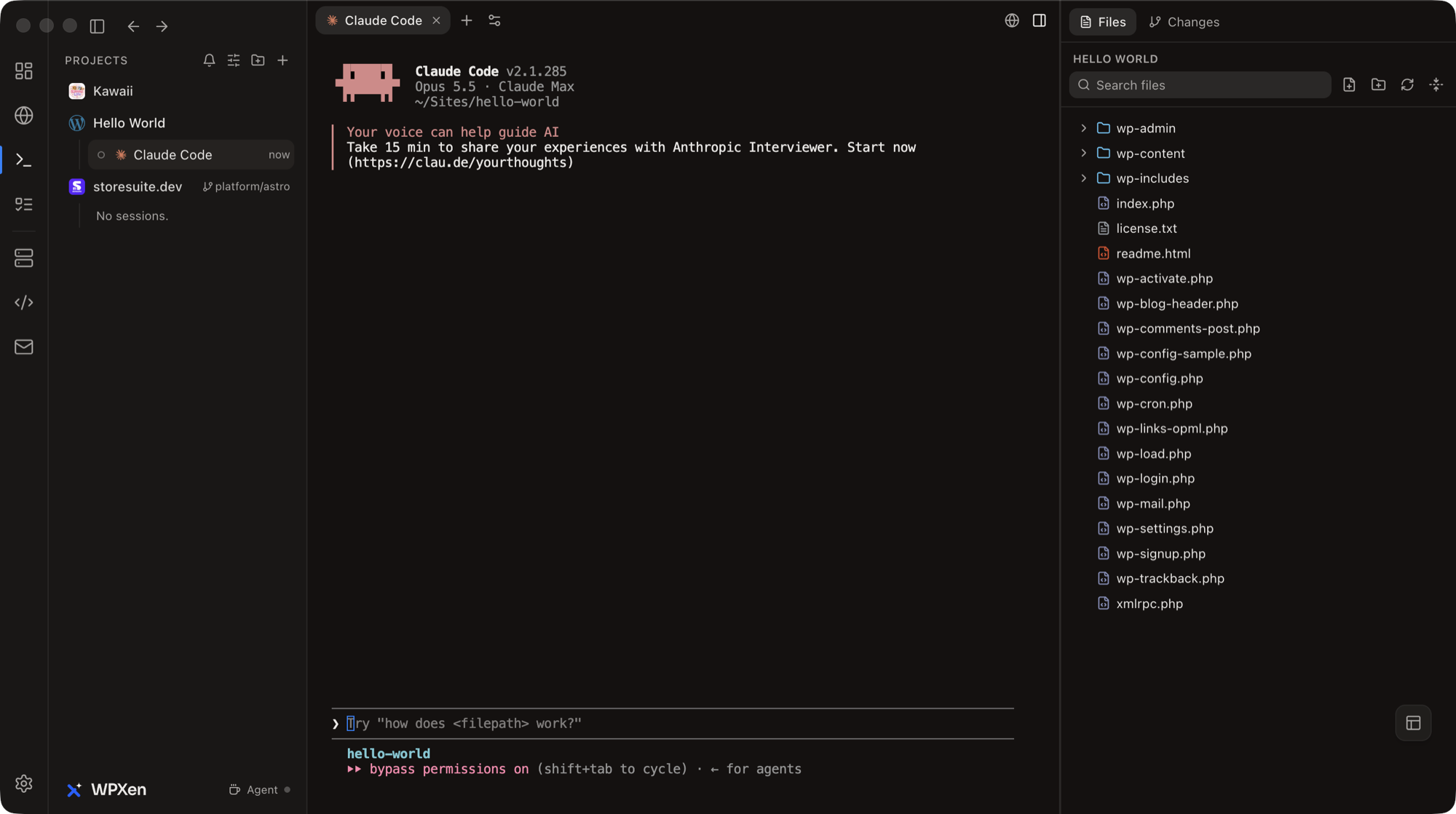
Zero manual setup
Brew, PHP and MySQL installed for you
One-click sites
WordPress on .test in seconds
AI agents built in
Claude Code, Codex, Copilot and more
No Docker, no Herd
One native app does it all
Fresh Mac
Skip the Local
WordPress Checklist
On a new MacBook, a working WordPress site usually means an evening of installs. WPXen turns it into one app and a few clicks.
The usual way
- Install Homebrew
/bin/bash -c "$(curl -fsSL …/install.sh)" - Install and link PHP
brew install php - Install MySQL and set a root password
brew install mysql - Download and configure phpMyAdmin
- Set up a web server and a vhost per site
- Point *.test domains at your Mac
- Or install MAMP, XAMPP, Herd or Valet on top of it all
With WPXen
- Open WPXenMissing Homebrew? It opens the official installer for you and carries on once it's done.
- Let onboarding install the stacknginx, PHP, MySQL, WP-CLI and .test domains, in one pass with a progress log.
- Click Add SiteWordPress, its database and yoursite.test are ready. phpMyAdmin, mail catching and HTTPS set themselves up the first time you use them.
What it does
Everything a WordPress
Site Needs, Locally
The local server you'd expect, and the AI workspace you wouldn't - in one native Mac app.
One-click WordPress sites
Name it and pick a PHP version. WPXen downloads WordPress, creates the database, writes the nginx vhost and serves it at yoursite.test.
An agent beside every site
Start Claude Code, Codex or any other agent in a site's own folder - several at once if you like. Sessions keep running while you work elsewhere.
Files, git and a browser
The site's files, its git changes and an in-app browser open as tabs next to the agent, so you watch the site change as the agent edits it.
Knows when you're needed
A notification, a tray count and a dock badge the moment an agent finishes or stops to ask you something - even when its tab isn't on screen.
PHP version per site
Run one site on PHP 8.4 and another on 7.4 at the same time, each on its own PHP-FPM. WP-CLI and the agent terminals follow the site.
HTTPS that just works
A locally trusted certificate authority mints browser-trusted certificates per site, so https://yoursite.test loads without a warning.
Mail catching
Every email WordPress sends lands in an in-app Mailpit inbox instead of a real one. phpMyAdmin is a click away too, already signed in.
Clone, export and blueprints
Duplicate a site, move one as a portable archive, import All-in-One WP Migration backups, or snapshot a site as a blueprint to start new ones from.
Any folder is a project
Not just WordPress: add any folder to Agents and get the same terminals, explorer, git and browser for a Laravel app, a Node project or anything else.
Bring your own
Built for the Agent
You Already Use
Every CLI agent runs in a real terminal rooted at the site, with as many sessions as you like.
Claude Code
Codex
Copilot
Cursor Agent
Antigravity
Grok
Command Code
MiMo Code
Not installed yet? WPXen installs the CLI for you in one click — or open a plain terminal.
Get started
From a Fresh Mac to
a Site in Three Steps
No Docker, no config files, no account. The onboarding wizard does the installing.
- Step 01
Download and open WPXen
Drag WPXen into Applications and open it. Onboarding checks what your Mac is missing - Homebrew included - and installs nginx, PHP, MySQL and WP-CLI for you.
- Step 02
Create a site
Click Add Site, give it a name and a PHP version. WPXen sets up WordPress, the database and the .test domain in one go.
- Step 03
Start an agent
Open Agents, pick the site and launch Claude Code or any other agent. Its terminal starts in the site's folder, with the files and the site in a browser beside it.
Questions
Common Questions
About WPXen
What is WPXen?
WPXen is a free, open-source macOS app for local WordPress development, built for working with AI coding agents. It runs your WordPress sites on .test domains using Homebrew's nginx, PHP-FPM and MySQL, and puts an AI agent terminal, the site's files, its git changes and an in-app browser side by side for each site.
Do I need to install Homebrew, PHP or MySQL before WPXen?
No. Install only WPXen. On first launch its onboarding checks what your Mac is missing: if Homebrew isn't installed it opens the official Homebrew installer in Terminal for you, then installs nginx, PHP, MySQL, dnsmasq and WP-CLI itself and points .test domains at your Mac. phpMyAdmin, Mailpit and HTTPS certificates are set up automatically the first time you use them.
Is WPXen free?
Yes. WPXen is free and open source, with no account, sign-up, subscription or paid tier. You can download the .dmg for Apple Silicon or Intel, or build it from source on GitHub.
Which AI agents does WPXen work with?
Claude Code, Codex, GitHub Copilot, Cursor Agent, Antigravity, Grok, Command Code and MiMo Code, plus a plain terminal. WPXen detects whichever CLIs you have installed, can install a missing one for you, and starts each agent in the site's own folder. You can run several sessions per site at once.
Does WPXen use Docker?
No. WPXen runs the services natively from your Homebrew install: nginx, PHP-FPM, MySQL and Mailpit run as supervised child processes of the app, and dnsmasq answers for the .test domains. There are no containers or virtual machines, so sites start instantly and files are just files on your Mac.
Can each site run a different PHP version?
Yes. Every site picks its own PHP version, and sites on different versions are served side by side, each by its own PHP-FPM pool. WP-CLI and the agent terminals use the same version as the site. Any Homebrew PHP works, including end-of-life 8.0 and 7.4 from the shivammathur/php tap.
Can I use WPXen for projects that aren't WordPress?
Yes. In the Agents section, Add project → Add folder turns any folder on your Mac into a project, so you get the same agent terminals, file explorer, git changes and in-app browser for a Laravel app, a Node project or anything else. The WordPress-only actions are simply hidden for it.
What does WPXen require?
WPXen runs on macOS 12 Monterey or later, on Apple Silicon and Intel Macs. It runs its services through Homebrew, which onboarding helps you install if it's missing. Ports 80 and 443 must be free, so quit other local stacks such as Laravel Herd, Valet or MAMP first - WPXen replaces them.
Why does macOS say WPXen cannot be opened?
Because the build is not signed with an Apple Developer ID or notarized, so macOS quarantines it on download. After the first blocked launch, open System Settings, go to Privacy & Security and click Open Anyway. Or clear the flag once in Terminal with xattr -dr com.apple.quarantine /Applications/WPXen.app, then open the app normally.
How is WPXen different from Laravel Herd or Local?
WPXen covers the same local-server ground - one-click sites, PHP switching, HTTPS, mail catching - and also sets up the underlying stack on a fresh Mac, so there is no separate install of Homebrew, PHP, MySQL or phpMyAdmin to do first. It is also built around AI agents as part of the workflow. Each site gets agent terminals, its files, git changes and a browser in one window, agents notify you when they finish or need input, and the services run natively from Homebrew rather than in containers.

Start Building
with WPXen
Builds for Apple Silicon and Intel Macs. The full source is on GitHub if you'd rather build it yourself, or send a pull request.
Free and open source · macOS 12 Monterey or later · Sets up Homebrew, PHP and MySQL for you · What's new in v1.4.0